Guide to Linking Your Wallet to Decentralized Exchanges

How to Connect MetaMask to Uniswap: Guide for Ethereum Wallet Users
As cryptocurrency adoption continues to grow, users often find themselves needing to interact with various decentralized applications (dApps). This guide focuses on connecting your MetaMask Wallet to Uniswap, providing a comprehensive solution for Ethereum users looking to engage with decentralized exchanges.
Step-by-Step: Connect MetaMask to Uniswap (Ethereum Guide)
This section outlines the process of connecting your MetaMask Wallet to Uniswap, ensuring a smooth interaction with the popular decentralized exchange.
Step 1: Set Up and Secure Your MetaMask Wallet
Before connecting to Uniswap, it's crucial to have a properly set up and secured MetaMask wallet. If you haven't already, install the MetaMask extension for your browser or the mobile app on your device.
For the browser extension:
- Install MetaMask from the official website or your browser's extension store.
- Create a new wallet or import an existing one using your recovery phrase.
- Set a strong password and securely store your recovery phrase offline.
For the mobile app:
- Download the MetaMask app from your device's app store.
- Set up a new wallet or import an existing one.
- Enable biometric authentication for added security.
Step 2: Navigate to Uniswap and Connect Your Wallet
Once your MetaMask wallet is ready, you can proceed to connect it to Uniswap. This process is straightforward and similar for both desktop and mobile users.
- Open your web browser and go to the official Uniswap website.
- Click on the "Connect Wallet" button, usually located in the top right corner.
- Select "MetaMask" from the list of available wallet options.
- A MetaMask popup will appear, asking for permission to connect. Review the details and click "Connect" to approve.
Step 3: Confirm Connection and Network
After connecting, it's essential to verify that you're on the correct network and that the connection is successful.
- Ensure that the Ethereum network is selected in both MetaMask and Uniswap.
- Check that your wallet address is displayed correctly on the Uniswap interface.
- If prompted, switch to the appropriate network within MetaMask.
Step 4: Interact with Uniswap
With your MetaMask wallet connected, you can now interact with Uniswap's features:
- Swap tokens by selecting the desired input and output tokens.
- Provide liquidity to pools for earning fees.
- View your transaction history and manage your positions.
Security Best Practices
Maintaining the security of your digital assets is paramount when interacting with dApps. Follow these best practices:
- Always verify the URL to ensure you're on the official Uniswap website.
- Be cautious of phishing attempts and never share your recovery phrase.
- Use hardware wallets for additional security when dealing with large amounts.
- Regularly update your MetaMask extension or app to the latest version.
Troubleshooting Common Issues
If you encounter problems during the connection process, consider these common issues and solutions:
- Ensure MetaMask is unlocked before attempting to connect.
- Clear your browser cache if you're experiencing persistent connection issues.
- Check that you have sufficient ETH for gas fees when making transactions.
- If transactions are slow, consider adjusting the gas price in MetaMask.
Conclusion
Connecting your MetaMask wallet to Uniswap opens up a world of decentralized finance opportunities. By following this guide and adhering to security best practices, you can safely interact with Uniswap and explore its features. Remember, the key to a successful experience lies in carefully managing your wallet security and understanding the risks and benefits of decentralized exchanges. As the crypto landscape evolves, staying informed about the latest developments in wallet connectivity and dApp interactions will help you navigate this exciting space more effectively.
FAQ
How to connect a wallet to Uniswap?
To connect a wallet to Uniswap, visit app.uniswap.org, click 'Connect Wallet', choose your wallet provider (e.g., MetaMask), and follow the prompts to authorize the connection.
Do you need MetaMask for Uniswap?
Yes, MetaMask is typically needed to use Uniswap. It's the most common wallet for connecting to Uniswap and other decentralized exchanges on Ethereum.
How to approve Uniswap in MetaMask?
To approve Uniswap in MetaMask: Open MetaMask, connect to Uniswap, select token to swap, click 'Approve', confirm transaction in MetaMask, wait for approval confirmation.
How to swap on Uniswap with MetaMask?
Connect MetaMask to Uniswap, select tokens to swap, set amount, review and confirm transaction in MetaMask. Ensure sufficient ETH for gas fees.
Download and Set Up a Secure Cryptocurrency Wallet
Ensuring the Safety of Your MetaMask Wallet
Top Ethereum Wallets for Maximum Security
Secure Solutions for Ethereum Wallets
How to Access Your Web3 Wallet Securely
Secure Methods for Offline Ethereum Storage

What is on-chain data analysis and how does it predict crypto market movements
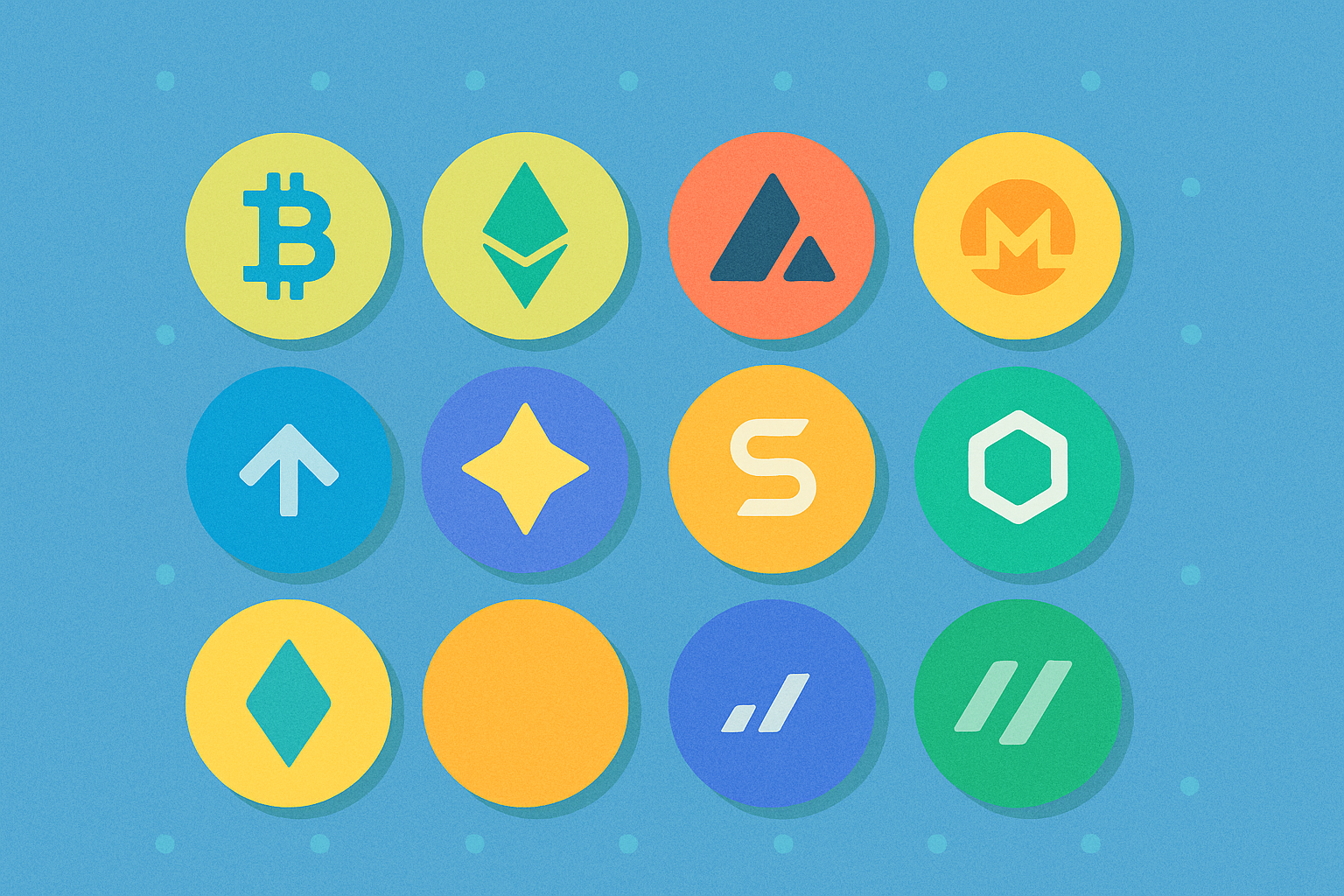
What Is the Current Crypto Market Overview: Market Cap Rankings, Trading Volume, and Liquidity Guide 2026
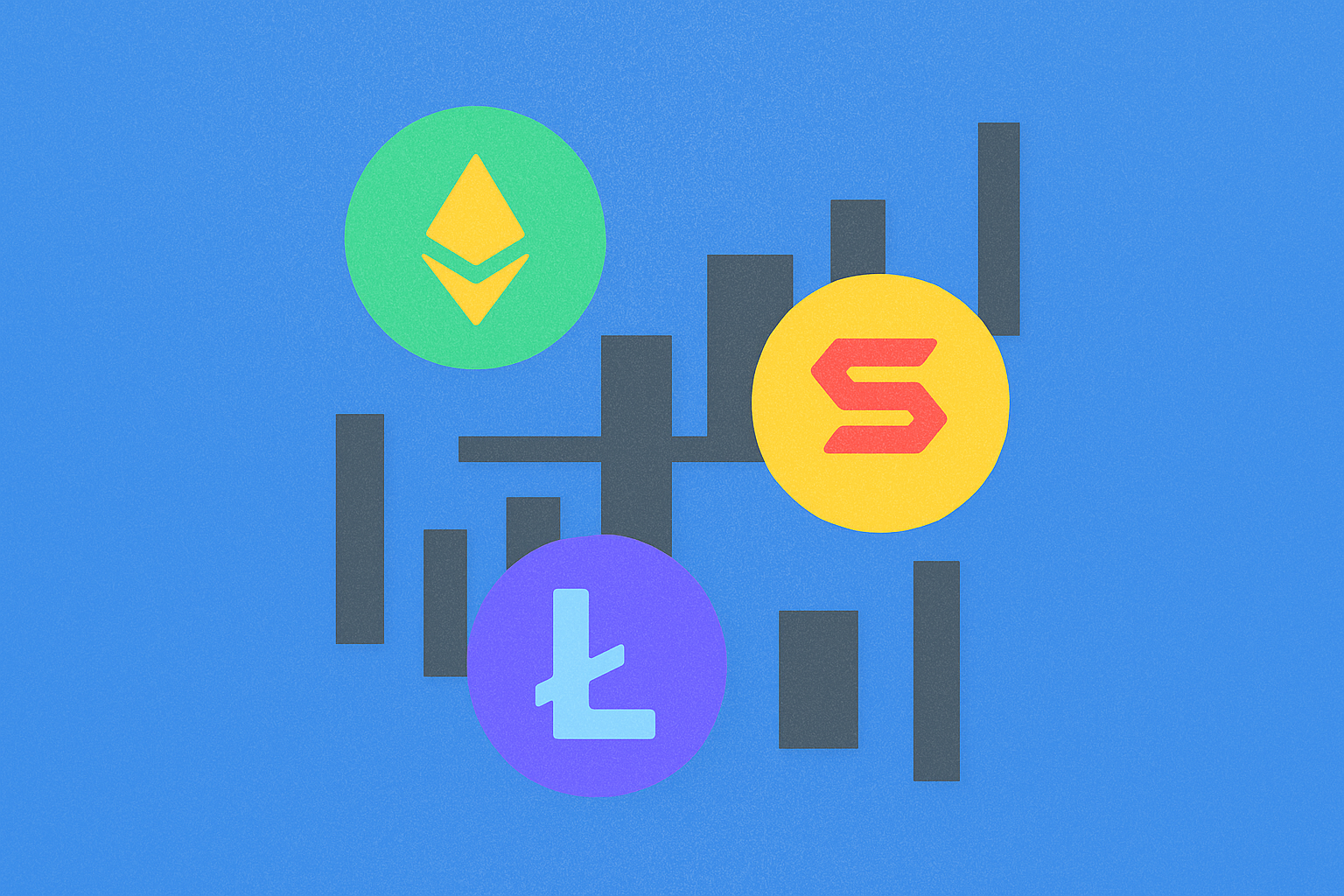
What Do Crypto Derivatives Signals Tell Us About Market Direction: Analyzing Futures Open Interest, Funding Rates, and Liquidation Data
What Crypto Communities Have the Most Active Developers and Highest Ecosystem Growth in 2026
What is the core fundamentals of a cryptocurrency project and how to analyze whitepaper, use cases, and team background